Shape Properties
Numeric inspector for the current selection: name, layer, dimensions, power scale, cut priority, and shape-specific options.
The Shape Properties panel shows the exact numeric properties of whatever is selected. It changes form based on what you have selected: nothing, one object, multiple objects, or a special object type (text, image).
Opening it
- Default dock zone:
upper-right - Visible by default: yes
- Hotkey: no default
What you see
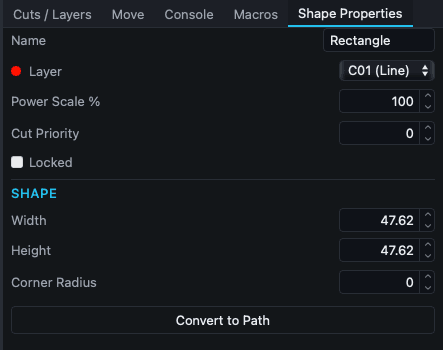 Shape Properties when a single rectangle is selected.
Nothing selected
Nothing selected placeholder. No fields.
One object selected
Always shown:
- Name (text), object name. Defaults to the shape type.
- Layer (select + color swatch), reassign to a different layer.
- Power Scale % (number, 0–100, step 1), per-object power multiplier on top of the layer's power.
- Cut Priority (number, -99 to 99, step 1), hint to the cut-order optimizer.
- Locked (toggle), locks position, rotation, and size.
Then a section specific to the object type:
- Shape (rectangles, ellipses, polygons, stars), see below.
- Text: font, size, alignment, bend; see Text tool.
- Raster Image: adjust, threshold, dithering; see Adjust Image dialog.
Plus a Convert to Path button for shape, text, polygon, and star types. Converts the parametric primitive into an editable path that the Node tool can edit point-by-point.
Shape section fields
| Field | Type | Range | Object types |
|---|---|---|---|
| Width | number (mm or inches) | min 0.1 | all shapes |
| Height | number (mm or inches) | min 0.1 | all shapes |
| Corner Radius | number (mm), step 0.5 | rectangles only | |
| Sides | number, step 1 | min 3 | polygons |
| Points | number, step 1 | min 3 | stars |
| Bulge | number, step 0.01 | 0–1 | stars |
| Ratio | number, step 0.01 | 0.05–0.95 | stars |
| Dual Radius | toggle | reveals Ratio 2 | stars |
| Ratio 2 | number, step 0.01 | 0.05–1 | stars with Dual Radius on |
Width and Height changes respect the aspect-ratio lock on the Properties Toolbar.
Multiple objects selected
{N} objects selected header. Three controls:
- Layer select, reassign all to a layer. Shows
Mixedif the selection spans multiple layers. - Visible checkbox, batch visibility. Indeterminate if mixed.
- Locked checkbox, batch lock. Indeterminate if mixed.
Plus, when exactly two objects are selected, a Boolean Operations section:
- Union: combine into one shape (additive).
- Subtract: second shape removed from first.
- Intersection: keep only the overlapping region.
For more boolean operations and an interactive picker, use Boolean Assistant or the Modifiers Toolbar.
What you can do
Resize a shape to an exact size
Select the shape, then set Width and Height to the values you want.
Lock aspect ratio
Use the aspect-ratio toggle on the Properties Toolbar at the top of the screen. With it on, editing Width adjusts Height proportionally (and vice versa).
Scale power per object
Set Power Scale % below 100 to reduce power for this specific object, or above (if your layer is below 100% to begin with) to amplify. Useful for darker spots in a multi-pass engrave.
Re-order cuts
Set Cut Priority to influence which objects within the same layer cut first. Higher numbers cut first within the layer.
Convert a primitive to an editable path
Click Convert to Path to turn a rectangle / ellipse / polygon / star into a path you can edit node-by-node. Irreversible (you lose the "this is a rectangle" semantics).
Boolean two selected shapes
Select exactly two objects. The Boolean Operations section appears. Click Union / Subtract / Intersection.
Behavior worth knowing
- Width / Height are disabled when the object is transform-locked. You will get a notification explaining why.
- Layer select shows the layer's color swatch next to the dropdown so you can verify visually.
- Multi-selection batch controls show
Mixedor an indeterminate (dash) state when objects in the selection have different values for that property. - The Power Scale and Cut Priority fields only affect this object's behavior, not the layer's defaults.
- Convert to Path is destructive in the sense that the primitive parameters (rectangle's corner radius, star's bulge, etc.) are baked into the path geometry and can no longer be edited as parameters.
Related
- Cuts / Layers: layer settings (where Power Scale stacks on top)
- Properties Toolbar: position, rotation, aspect-ratio lock
- Node tool: edit a converted path
- Boolean Assistant dialog: full boolean UI
- Modifiers Toolbar: Union / Subtract / Intersect / Exclude buttons
- Text tool: text-specific options