Cuts / Layers
The layer list. One row per layer. Pick mode, set power and speed, reorder, toggle output and air assist.
The Cuts/Layers panel is where you decide what each layer does on the machine. Every object on the canvas belongs to a layer (keyed by color), and every layer has its own cut settings.
Opening it
- Default dock zone:
upper-right - Visible by default: yes
- Hotkey: no default. Re-open from the Window menu if closed.
What you see
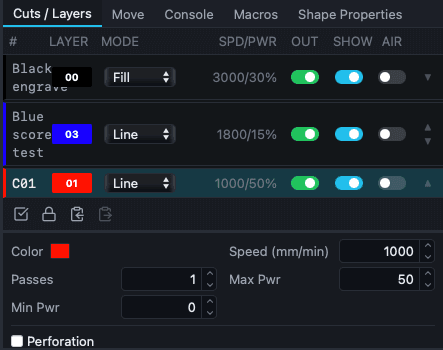 Three layers: an engrave (Fill), a score (Line, low power), and a cut layer.
A table with one row per layer, grouped visually into color families with separators. Columns:
| Column | Meaning |
|---|---|
| # | Color chip (e.g. C00, C01) or T1 for tool layers. Auto-generated unique tag. |
| Layer | Layer name. Defaults to the color tag; double-click to rename. |
| Mode | Line, Fill, or Offset Fill (vector layers only). |
| Spd/Pwr | Speed and power as text. For tool layers, shows a Frame toggle. |
| Out | Output toggle. Off-layers do not run. Disabled for tool layers. |
| Show | Visibility toggle. Hidden layers do not render on the canvas. |
| Air | Air assist toggle. Disabled for tool layers. |
Below the table:
- Reorder arrows (▲ / ▼), move the active layer up or down.
- Select all on layer (⊞), selects every object on the active layer.
- Toggle lock on layer objects (🔒), locks or unlocks every object on the active layer.
- Copy layer settings (📋), copies the active layer's settings to an in-app clipboard.
- Paste layer settings: applies copied settings to the active layer.
When a layer is active, a quick-edit strip appears at the bottom for that layer's most-used fields:
- Speed (mm/s or mm/min depending on Speed unit)
- Passes (min 1)
- Max Pwr (0–100%)
- Min Pwr (0–100%, vector + fill modes only)
- Interval (mm, fill and image modes only)
- Perforation toggle, when on, exposes On (ms) and Off (ms) inputs
- Kerf (mm) (vector modes only)
What you can do
Reorder layers
The machine runs layers in the order shown, top to bottom. Drag rows or use the reorder arrows below the table. The recommended order: engrave first, score second, cut through last, so the material stays held in place until the very last operation.
Rename a layer
Double-click the layer name field. Type the new name. Enter to commit, Esc to cancel.
Edit a layer in detail
Double-click anywhere on the row to open the full Cut Settings editor. The quick-edit strip handles the common cases inline; the full editor exposes everything (kerf, perforation, sublayers, image-mode dithering choice, and so on).
Select all objects on a layer
Click the ⊞ action button while that layer is active. Or Shift+click the layer row (selects in reverse order).
Lock all objects on a layer
Click the 🔒 action button to lock or unlock every object on the active layer. Locked objects are not editable on the canvas.
Batch actions across all layers
Right-click the table header. Options:
- Enable / disable / invert all (output)
- Show / hide / invert all (visibility)
- Sort Cuts Last (re-orders so cut-through layers run after engrave/score)
Copy settings between layers
Click 📋 on the source layer, then 📋📌 on the destination. Useful when you have a tuned engrave layer and want to apply the same settings to a different color family.
Flash a layer (visually highlight)
Shift+right-click a layer row to flash all of its objects on the canvas. Useful for finding which color in a complex design is which layer.
Behavior worth knowing
- The layer family for each color comes from the object's
color_tag. Reassigning a layer via the Color Palette moves the object between families. - Tool layers appear with an immutable
Toollabel. They cannot be assigned a power/speed and do not output to the machine; they exist for canvas-only operations like guides or image markers. - Image layers show
Imagein the mode column. Their settings live in the full editor (dithering algorithm, image power scaling). - Multi-mode rows show
Multiwhen a layer has sublayers (e.g. an Image layer plus a Line border). - The empty-state message is Draw or import to create a layer.
Related
- Color Palette: assigns objects to layer colors
- Shape Properties: per-object overrides (power scale, cut priority)
- Material Library: saved layer setting presets
- Cuts Settings dialog: full layer editor (opened via double-click)
- Layers and color families: the underlying model
- Dithering algorithms: for Image mode