Material Library
Saved cut settings per material and thickness. Apply a preset to a layer with one click.
The Material Library holds presets, combinations of operation, speed, power, and passes that you have verified work well on a specific material at a specific thickness. Apply a preset to a layer and the layer's settings update to match.
This is the canonical way to stop guessing at power/speed every time. Run a material test grid once per new material, save the result here, never recompute it.
Opening it
- Default dock zone:
lower-right - Visible by default: yes
- Hotkey: no default
What you see
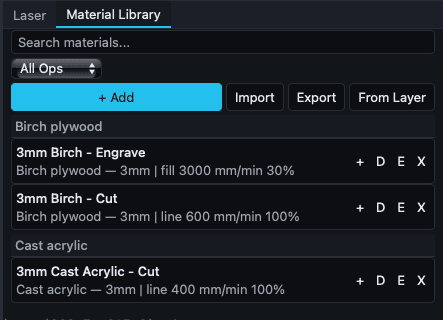 Three example presets grouped by material.
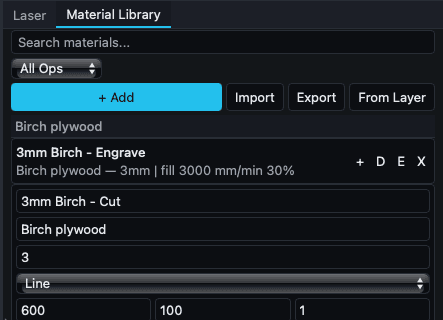 The inline edit form for a preset.
Top of the panel: search bar plus two filter dropdowns.
- Search materials... (text), filter by name, material, or any visible text.
- All Ops dropdown, filter by operation: All Ops / Line / Fill / Offset Fill.
- All Devices dropdown, filter by device profile (only shown if multiple profiles exist).
Action row:
- + Add: create a new preset with defaults (name: New Preset, material: Custom, thickness 3.0 mm, operation Line, speed 1000 mm/min, power 50%, passes 1).
- Import: load presets from a JSON file.
- Export: save all presets to a JSON file.
- From Layer: create a new preset from the currently selected layer's first entry. Disabled when no layer is selected.
Then the preset list, grouped first by material name, then by thickness (e.g. 3.0mm, unspecified). Thickness sub-headers are hidden when a material has only one thickness.
Each preset row collapsed shows: name, material, thickness, operation, speed (with unit), power %. Four icon buttons per row:
| Button | Title | Action |
|---|---|---|
| + | Apply | Apply the preset to the currently selected layer. Disabled if no layer selected. |
| D | Duplicate | Copy the preset, with (Copy) appended to the name. |
| E | Edit | Open the inline edit form. |
| X | Delete | Remove the preset. |
When editing a preset, the form exposes:
| Field | Type | Notes |
|---|---|---|
| Name | text | Preset name. |
| Material | text | Material description (e.g. Acrylic, Leather). |
| Thickness (mm) | number | Material thickness in mm. |
| Operation | select | Line / Fill / Offset Fill. If the preset already had a non-default operation (Cut, Score, Image, or Tool) the existing value is preserved on edit. |
| Speed | number | In current Display Unit (mm/min or in/min). Stored internally as mm/min. |
| Power % | number | 0-100. |
| Passes | number | Pass count. |
| Notes | text (optional) | Anything to remember about the preset. |
Form footer: Save / Cancel.
If you try to switch presets with unsaved edits, an amber banner offers Keep Editing or Discard.
What you can do
Apply a preset to a layer
- Select the target layer in the Cuts/Layers panel.
- Find the preset (search if needed).
- Click the + (Apply) button on the preset row.
The layer's operation, speed, power, and passes update to match. Re-running this overwrites prior edits.
Save current layer settings as a preset
- Select the layer in Cuts/Layers.
- Click From Layer.
- A new preset appears in edit mode, pre-populated. Set the material name, thickness, notes.
- Save.
For image layers, From Layer captures the raster settings too (DPI, line interval, scan angle, bidirectional).
Build a library from scratch
For each new material:
- Run the Material Test Grid on a swatch of the material.
- Identify the settings that gave the cleanest result.
- Click + Add, set name / material / thickness / operation / speed / power / passes.
- Save.
- Repeat.
After a few materials, you stop guessing.
Share presets
Export writes JSON. Import reads it. Use to back up your library, share with others, or move between machines.
Behavior worth knowing
- Presets group by material name and thickness for visual scanning. Same material at different thicknesses are nearby; different materials are far apart.
- Speed values shown in the form respect the Display Unit and Speed Time Unit. Internally, all speeds are stored in mm/min so presets stay machine-correct regardless of your display preference.
- Image-layer raster settings (DPI, interval, scan angle, bidirectional) are saved when you create from an image layer. Applying to a non-image layer ignores the image fields.
Related
- Cuts / Layers panel: where presets get applied
- Material Test Grid guide: how to find good settings
- Focus Test and Interval Test, complementary calibration