Connection Diagnostics
Live machine connection state, port detection, GRBL handshake, recent TX/RX traffic. Open this when something is wrong.
The Connection Diagnostics panel is the firehose for understanding what the machine and Beam Bench are saying to each other. It is read-only: there is nothing here to click that changes machine state. It exists so you can see what is happening and, if needed, package a snapshot for a bug report.
Open this panel when:
- The machine will not connect.
- The connection drops mid-job.
- You see garbled responses in the Console.
- You are filing a bug report related to connectivity.
Opening it
- Default dock zone:
lower-right - Visible by default: no: open from the Window menu
- Hotkey: no default
What you see
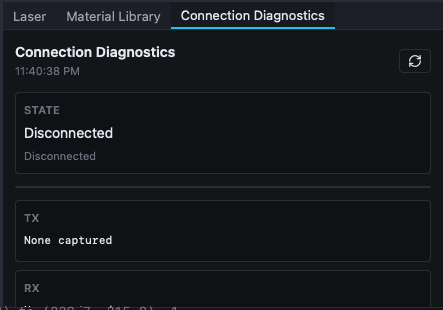 Disconnected state with no captured TX/RX traffic.
The panel auto-refreshes its snapshot every second. Top to bottom:
Header
- Title with a snapshot timestamp (local time, e.g.
2:45:30 PM). - A refresh icon button (top right), force-refreshes the snapshot.
Machine state block
- Session State: the current backend session state, formatted (underscores replaced with spaces):
disconnected,connecting,validating,ready,running,paused,alarm,error. - Handshake Message: the most recent handshake response.
No connection attempt recorded.if there is no history. - Firmware Version: controller firmware string if available.
Serial port table
Columns: Port, VID, PID, State.
- Port: e.g.
COM3,/dev/ttyUSB0,/dev/tty.usbserial-1410. - VID / PID: vendor and product IDs in hex, or
-if the OS does not surface them. - State:
in use by Beam Benchoravailable.
Known issues
When the discovery layer detects something it knows about (e.g. driver not installed for a recognized chip), it appears in an amber alert box here.
Connection events log
The last 6 events in monospace format with: timestamp, stage (connect, handshake, etc.), port name, baud rate, error or message. Helpful to see exactly when and why a connection failed.
TX / RX traffic blocks
Recent serial traffic in two representations:
- Hex: raw byte stream as hexadecimal.
- ASCII: same bytes as printable text where possible.
Either may be empty if no traffic has been captured recently.
Action buttons
- Save Diagnostics: write the current snapshot to a file. Useful for sharing diagnostics in the Facebook group or attaching to a bug report.
- Send to Beam Bench: open the Feedback Report dialog with connectivity context pre-filled, ready to send.
What you can do
See if the machine is actually visible
Check the serial port table. If your machine's port is listed, the OS can see it. If it is missing, the issue is at the driver or hardware level.
See if Beam Bench grabbed the port
The State column shows in use by Beam Bench for the port currently open by the app. If you expected a connection and the port shows available, the connection did not complete.
See why the connection failed
Read the Handshake Message and the Connection events log. The most recent failure event names the stage and error.
Verify the controller is responding
The TX / RX traffic blocks show recent activity. If TX has data but RX is empty, the machine is not responding. If both are populated but garbled, baud rate or framing is wrong.
File a connectivity bug report
Click Send to Beam Bench. The Feedback Report dialog pre-fills with connectivity context (state, ports, recent traffic). Add a description and submit.
Behavior worth knowing
- The auto-refresh interval is 1 second. The header timestamp updates on each refresh.
- TX/RX buffers are bounded, only recent traffic is retained, not the whole session.
- The connection events log shows the last 6 events. Older events are dropped.
- Save Diagnostics produces a feedback-style bundle but writes it locally instead of submitting.
- This panel does not modify the machine state. The connect/disconnect controls live in Laser Control and Device Settings dialog.
Related
- Laser Control: connect / disconnect controls
- Console panel: manual G-code traffic
- Device Settings dialog: port, baud, profile
- Feedback Report dialog
- Connection problems: symptom-driven fixes