Preview
Simulated cut. Plays back the entire job at adjustable speed so you can verify what the machine will do before it does it.
The Preview window plays back a simulation of the job: every laser-on segment, every rapid travel, in the order the planner produced. Use it before every real burn to catch surprises that the canvas does not show.
When it opens
- Hotkey:
Alt+P - Window menu: Preview
Opens as a movable, resizable window. Press Esc to close.
What you see
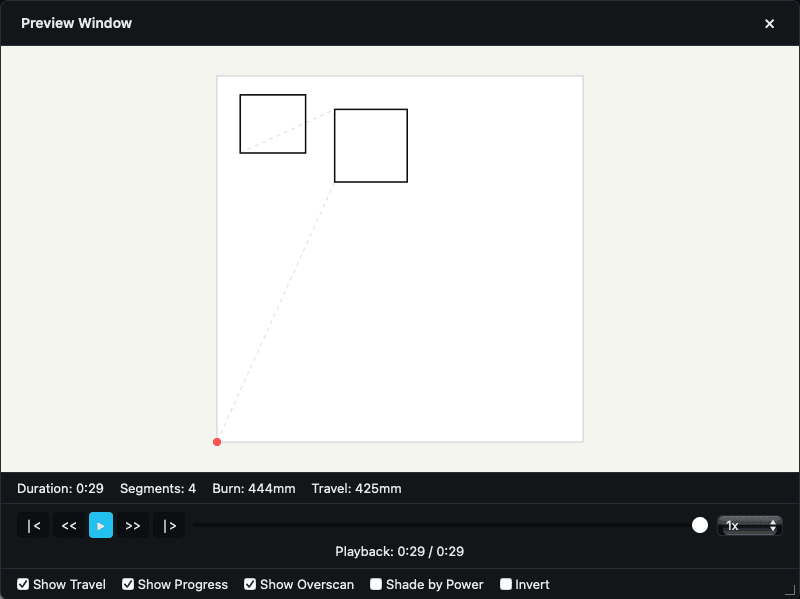 Preview during playback: traced moves on the canvas, stats row, and playback controls.
The window has, top to bottom:
Canvas
The simulation itself. Scroll to zoom (1.15× per tick), left-click drag to pan, double-click to reset the view.
Warnings row
If the plan generated warnings (e.g. clipped paths, unreachable areas), they appear in an amber row.
Failed entries row
If any objects could not be planned (e.g. a layer with no power, or a corrupt path), they appear in red.
Stats row
| Stat | Meaning |
|---|---|
| Duration | Estimated total time in MM:SS. |
| Segments | Number of distinct planner segments. |
| Burn | Total distance the laser will be firing. Units follow Display Unit. |
| Travel | Total rapid-travel distance with the laser off. |
| Raster lines | Number of scan lines (only shown when greater than zero). |
Playback controls
| Button | Action |
|---|---|
|< | Go to start |
<< | Previous segment |
▶ / || | Play / Pause |
>> | Next segment |
|> | Go to end |
Below the buttons: a scrubber (drag to a specific time) and Playback: MM:SS / MM:SS.
Right of the buttons: a Speed selector with options 0.1x, 0.25x, 0.5x, 1x, 2x, 4x, 8x, 16x, 24x, 40x.
Footer toggles
| Toggle | What it shows |
|---|---|
| Show Travel | Rapid moves (laser off). On by default. |
| Show Progress | Progress trace highlighting completed segments. |
| Show Overscan | Overscan extensions on raster lines (the head's deceleration past the edge). |
| Shade by Power | Color brightness reflects the layer's power. |
| Invert | Flip background/foreground colors for visibility. |
What you can do
Watch the full job
Press Play. Use Speed to fast-forward.
Verify a specific section
Drag the scrubber to a time, or use the previous/next segment buttons to step through one segment at a time.
Check overscan behavior
Turn on Show Overscan. The overshoot at the start and end of each raster line becomes visible, this is normal and needed for clean fills.
See how long the job will take
Read Duration in the stats row. This is the planner's estimate based on acceleration / max speed in your active machine profile. Real-world time will be close but not exact.
Behavior worth knowing
- The window opens in the completed state, playback position jumps to the end when a new plan loads. Hit
|<to start over. - When you toggle Show Travel off, travel segments collapse to zero duration so playback doesn't stall on them. Total duration changes but the current scrub position stays put.
- If the plan is Stale (canvas changed since the last preview), the header shows Stale, refresh required and a Refresh button appears.
- During plan generation, an overlay shows Generating preview... with a Cancel button.
- If generation fails, a red overlay shows Preview generation failed. Common causes: a layer with zero power, an unreadable image, or a malformed import.
- Empty project shows No preview data. Add objects to generate a preview.
Notes
- Preview only shows what the planner produced. It is not a real-time render of the machine. If preview looks right but the actual cut does not, the issue is mechanical, firmware, or material, not the planner. See Job quality problems.
- Preview generation runs in the background. For complex projects it can take several seconds.
Related
- Laser Control: start the actual job
- Cuts / Layers: layer-level settings that determine the plan
- Preview problems: when preview itself behaves unexpectedly
- Coordinate systems